Your idea. Your merchandise.
Design your gear
Create an image or upload your own design. Save the artwork, then choose whether to make products with it.
Product generator tutorial
Watch the silent Rich Media Empire walkthrough, then expand any step below for a screenshot and written instructions. Generation waiting time is shortened in the video.
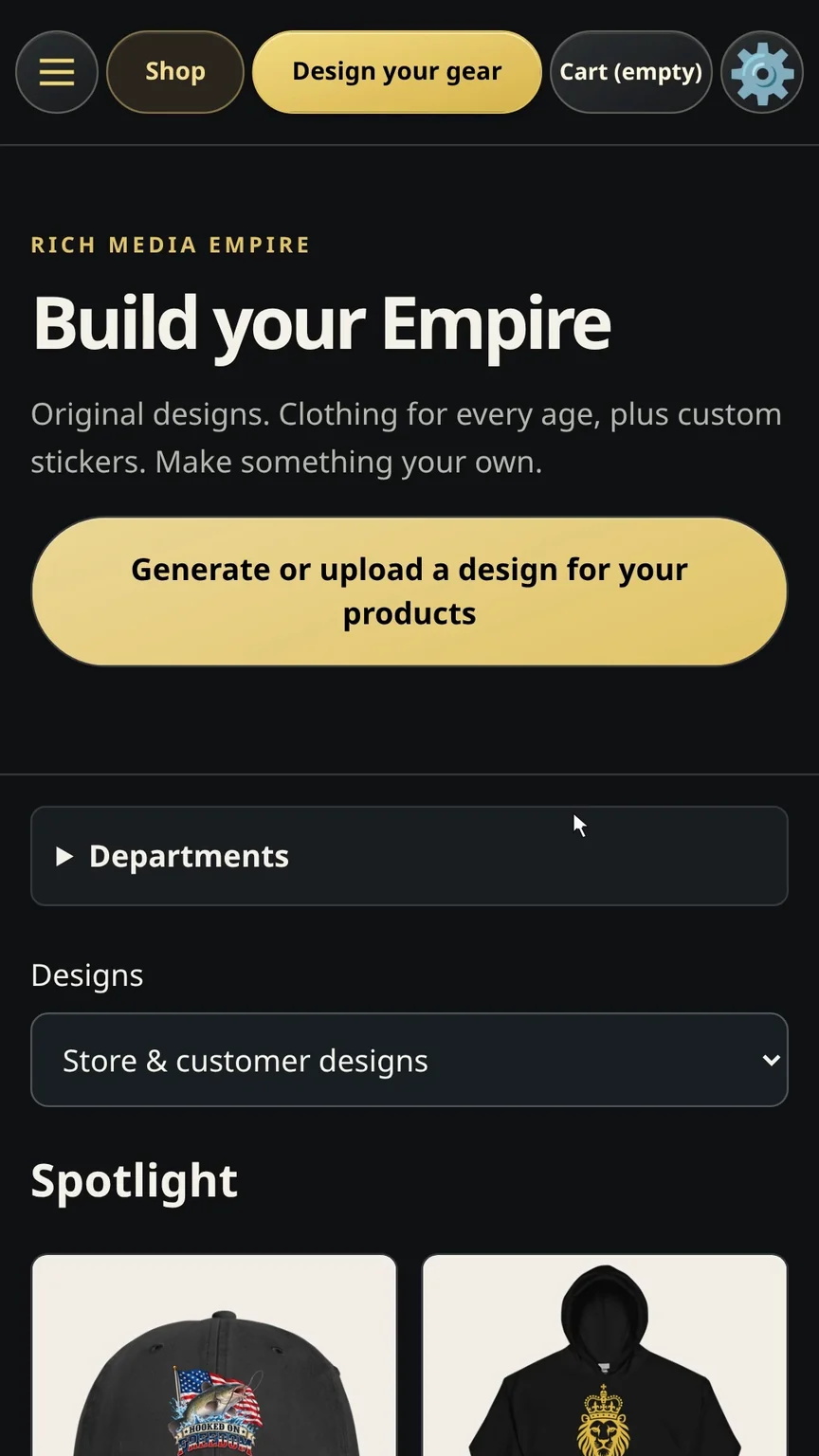
1. Open Design your gear
From the shop, select the yellow Design your gear toolbar button.
Sign in, create an account, or continue as a guest if prompted.
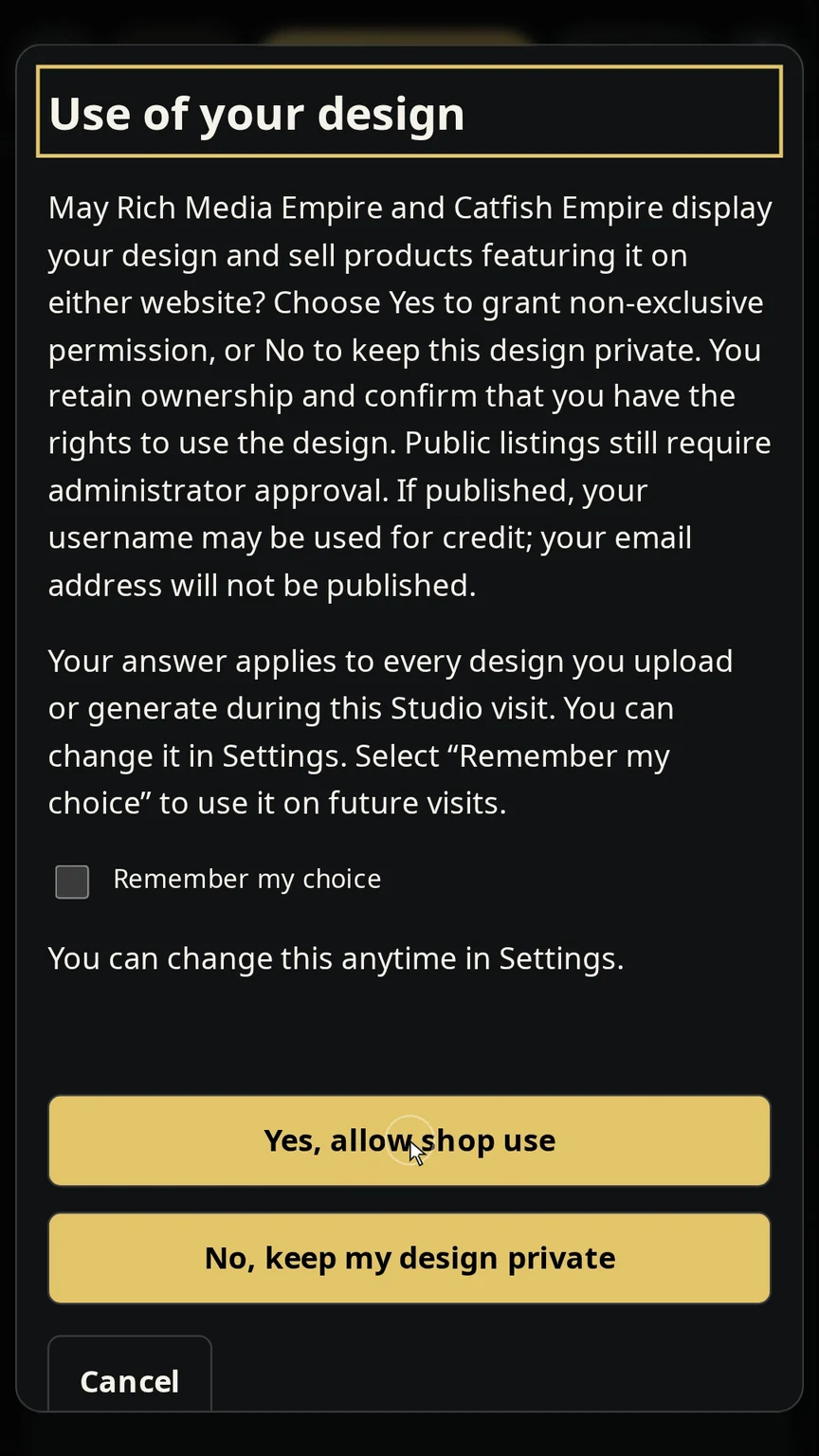
2. Choose how your design may be used
Review the Use of your design choices. This tutorial selects Yes, allow shop use.
Remember my choice is optional. Select it only if you want to save your decision for future visits. You can change this in Settings.
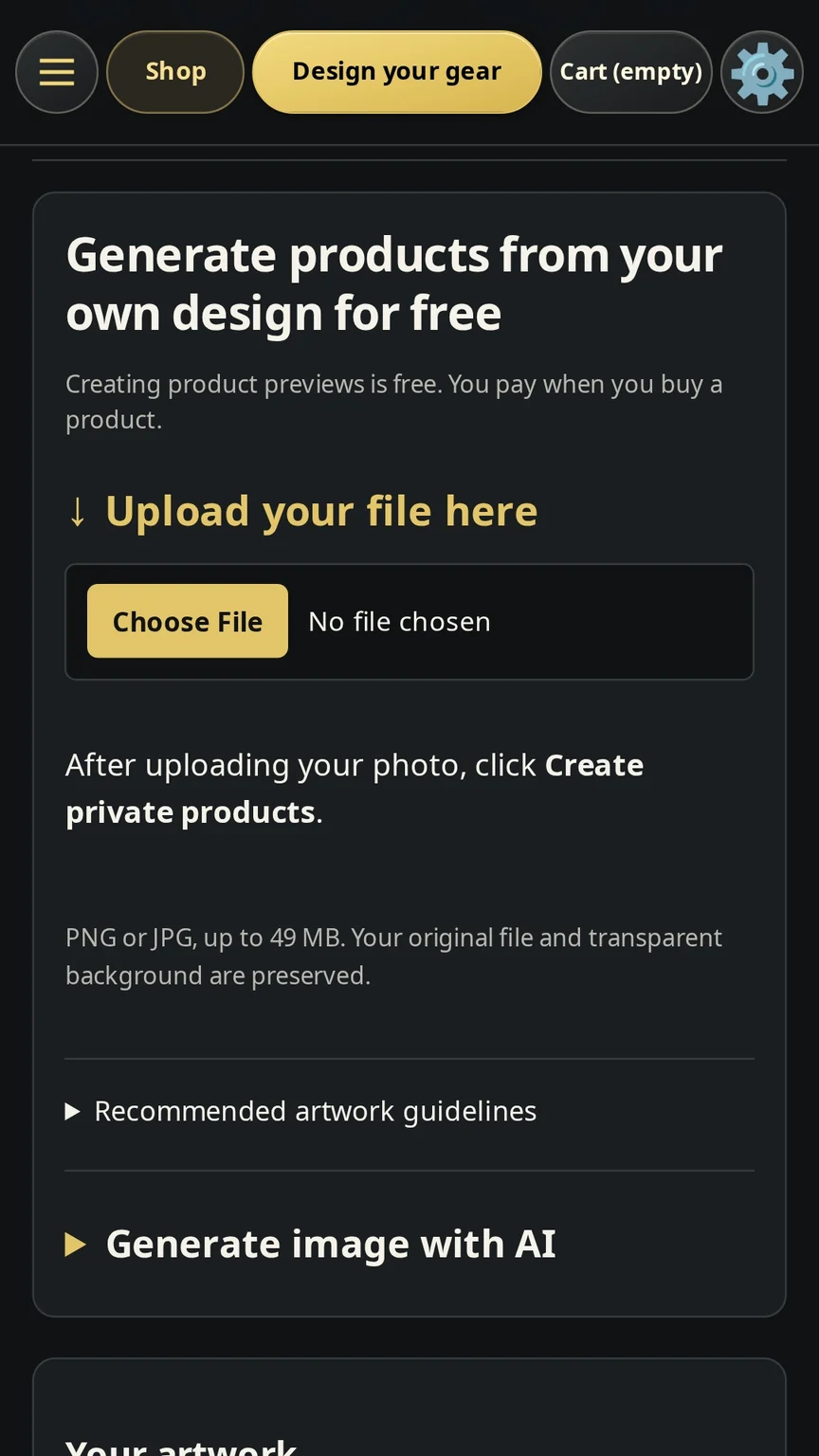
3. Upload your artwork
Select Choose File under Upload your file here and choose a PNG or JPG from your device.
The maximum file size is 49 MB. Upload your original, high-resolution artwork for the best result.
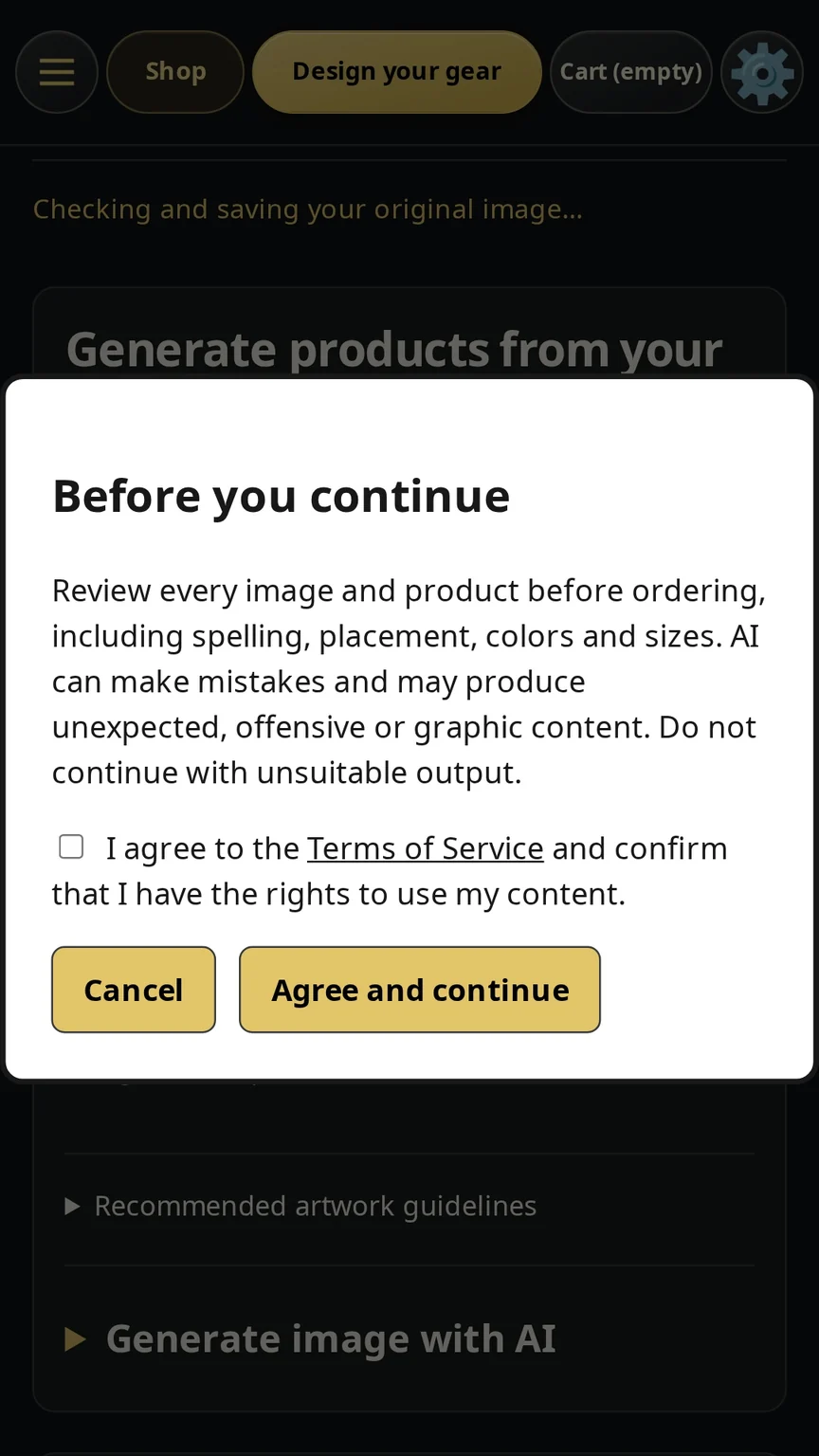
4. Review the upload terms
If Before you continue appears, review the Terms of Service and artwork requirements.
If you accept, check the box and select Agree and continue.
5. Check the artwork and create products
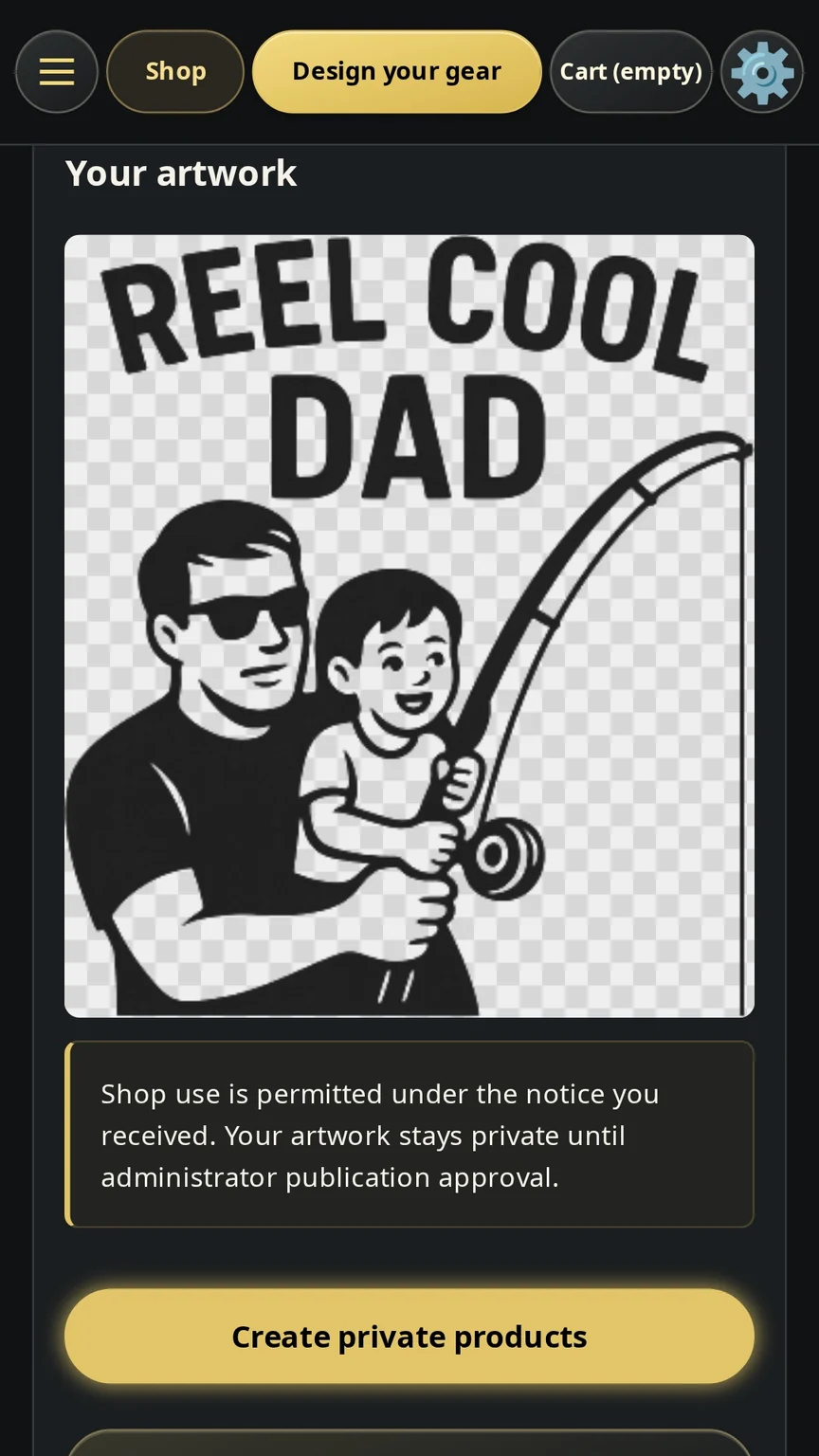
Your upload saves automatically. Check that the preview contains the correct artwork.
Select Create private products to open the product choices below it.
6. Choose your products
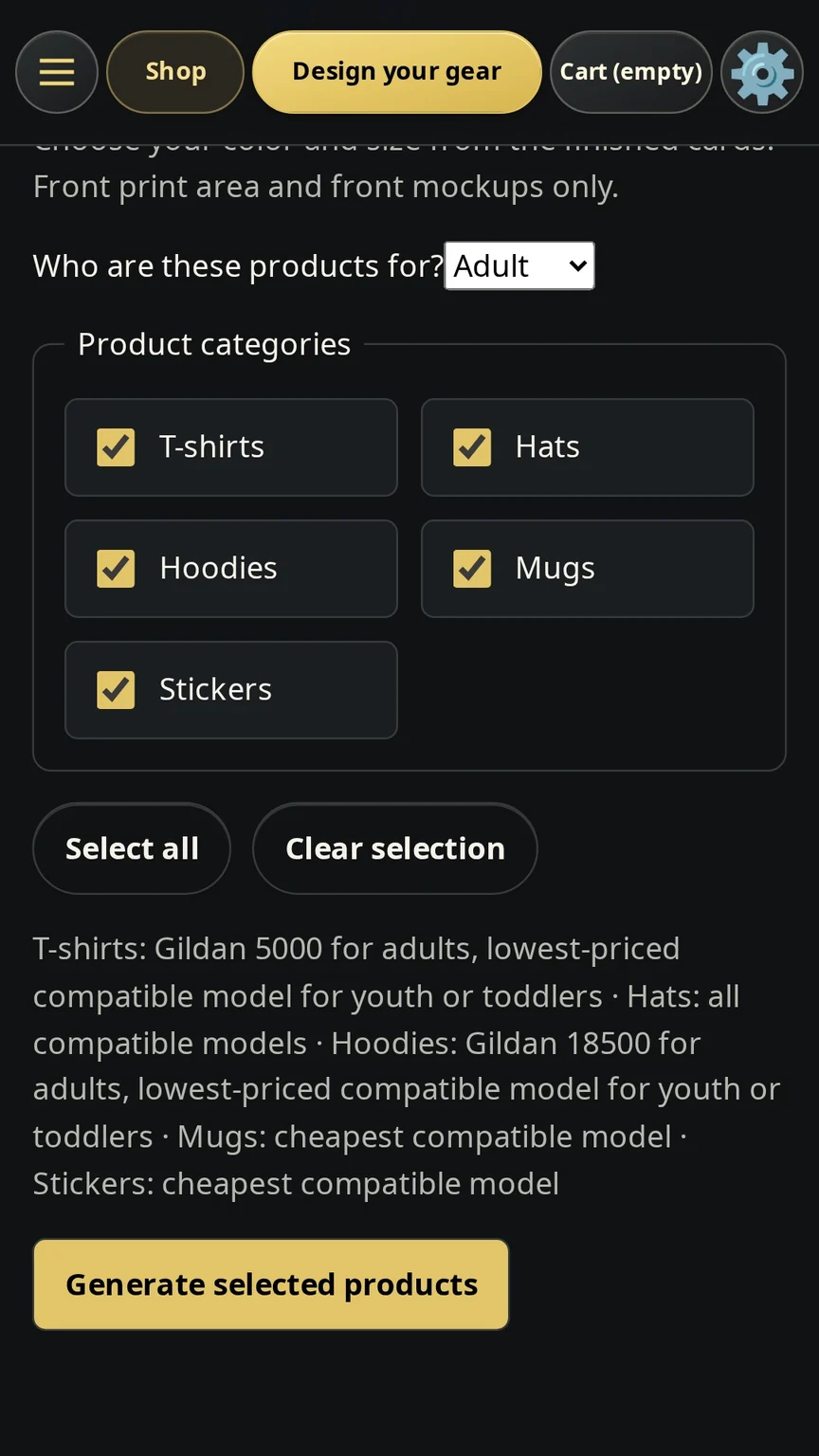
Adult is selected by default. Change the age group only when you need a different clothing range.
Choose individual product categories, or Select all for T-shirts, Hoodies, Hats, Mugs and Stickers.
7. Generate the selected products
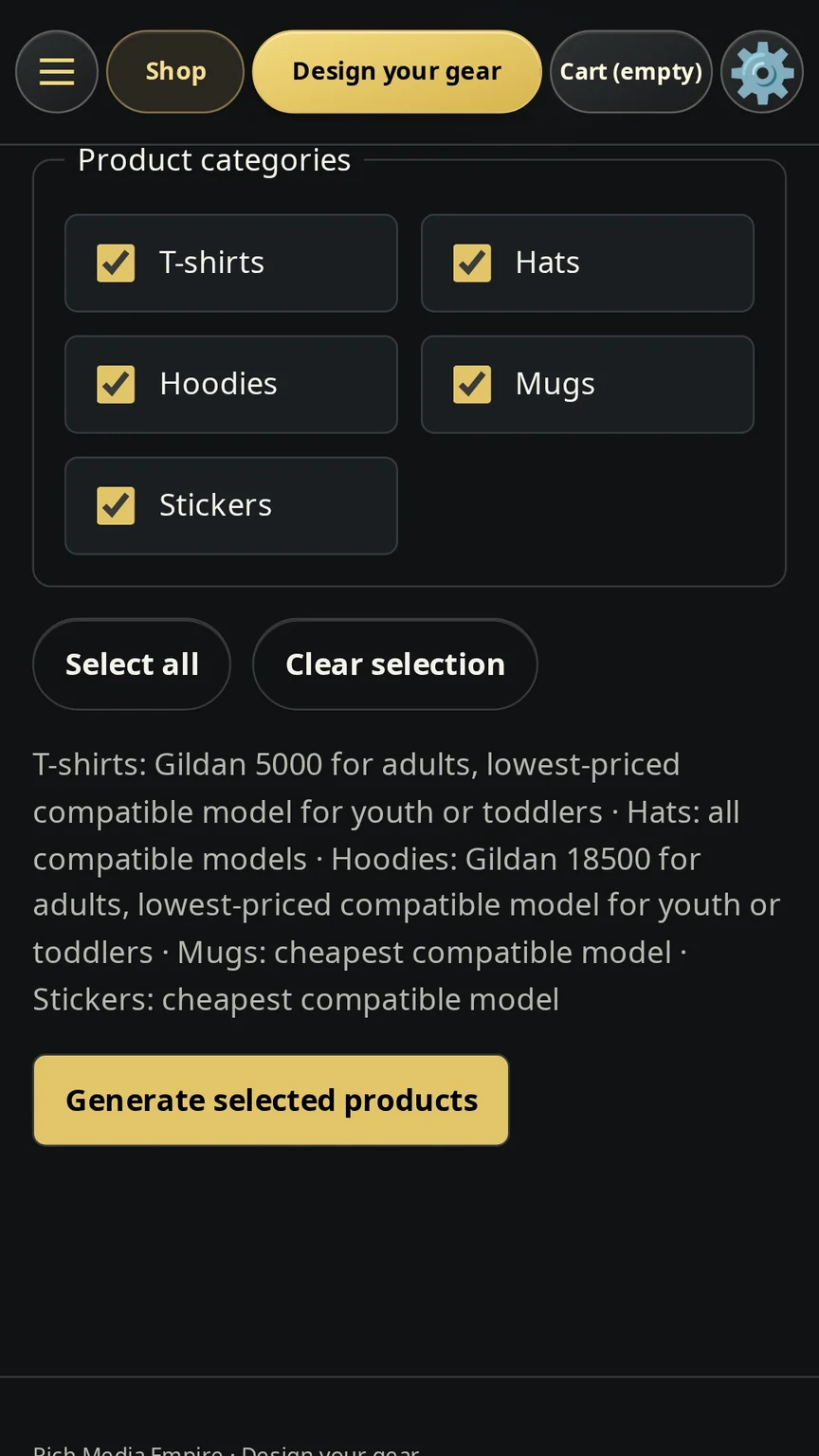
Check your selection, then select Generate selected products.
Creating previews from your own artwork is free. You pay when you buy a product.
8. Wait for the previews
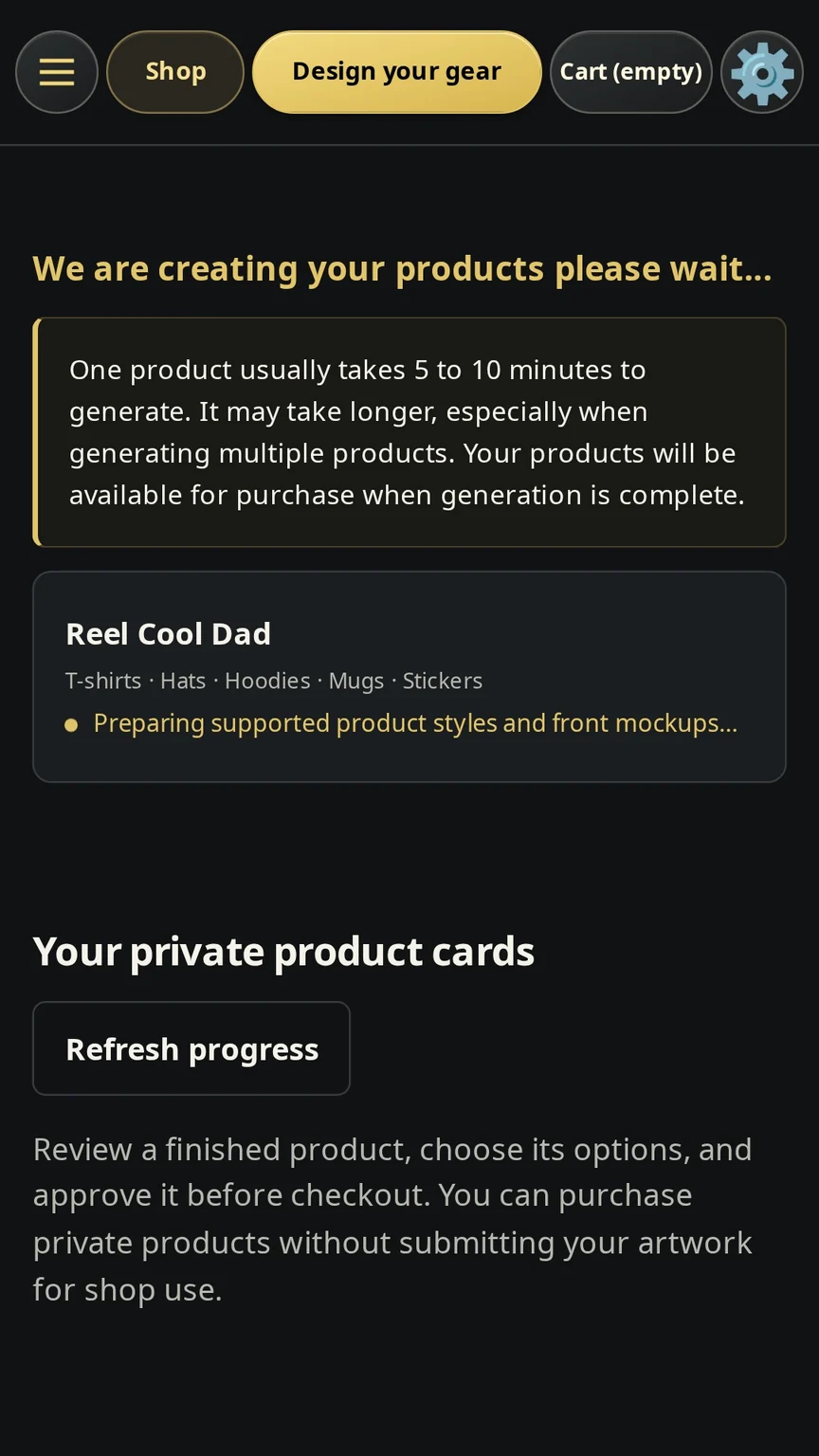
The page shows generation progress while the product mockups are prepared.
One product usually takes 5–10 minutes and can take longer, especially when generating multiple products. The wait is shortened in this tutorial.
Use Refresh progress to check the saved job.
9. Open your completed collection
Find the completed card under Your private product cards.
Select View products & review to open its product categories.
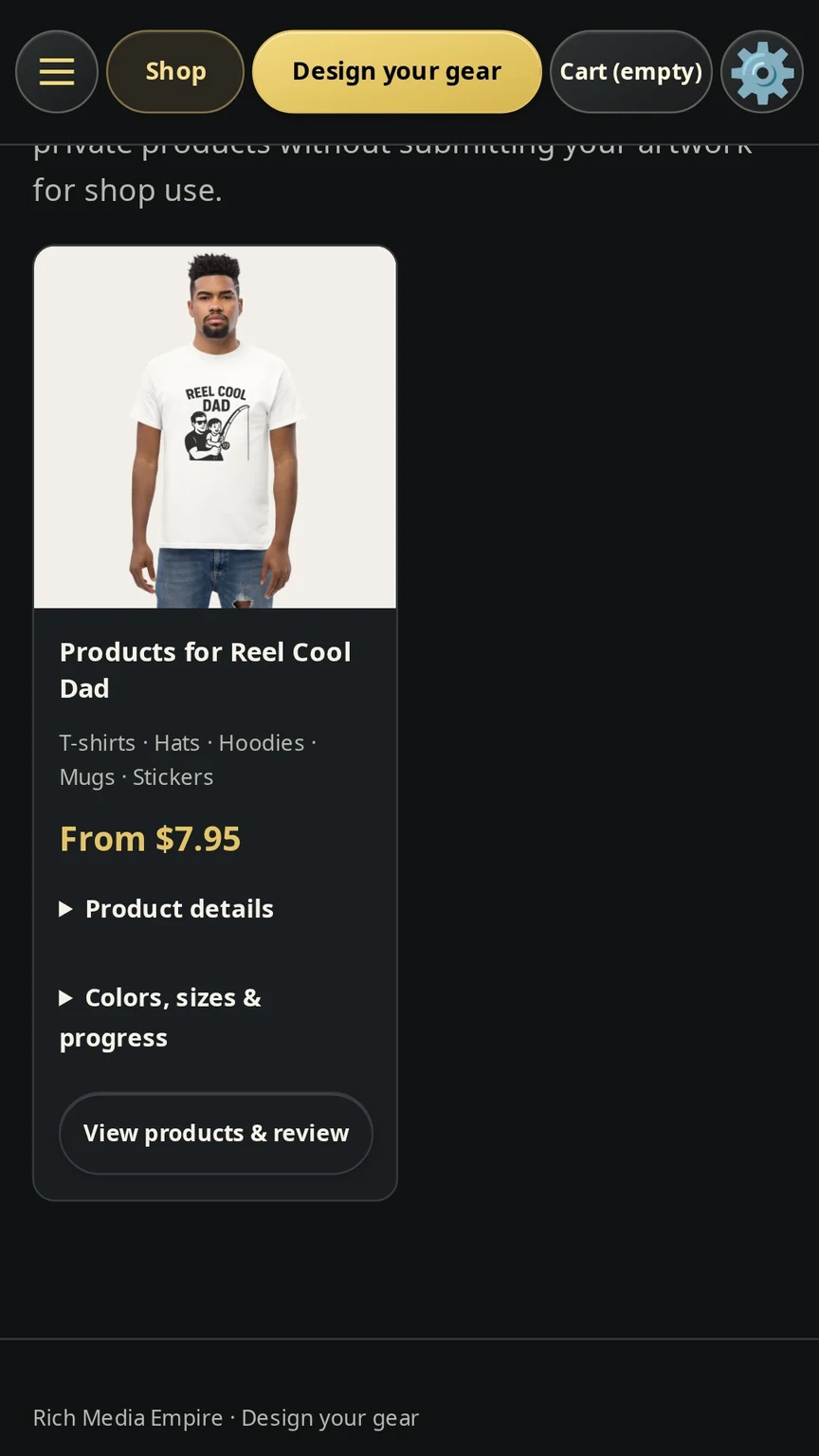
10. Review T-shirts
Select Choose T-shirts. Use the color photos below the enlarged mockup to change its color.
Scroll down to review the available Color and Size options.
Close the preview, then reopen View products & review to try another product type.
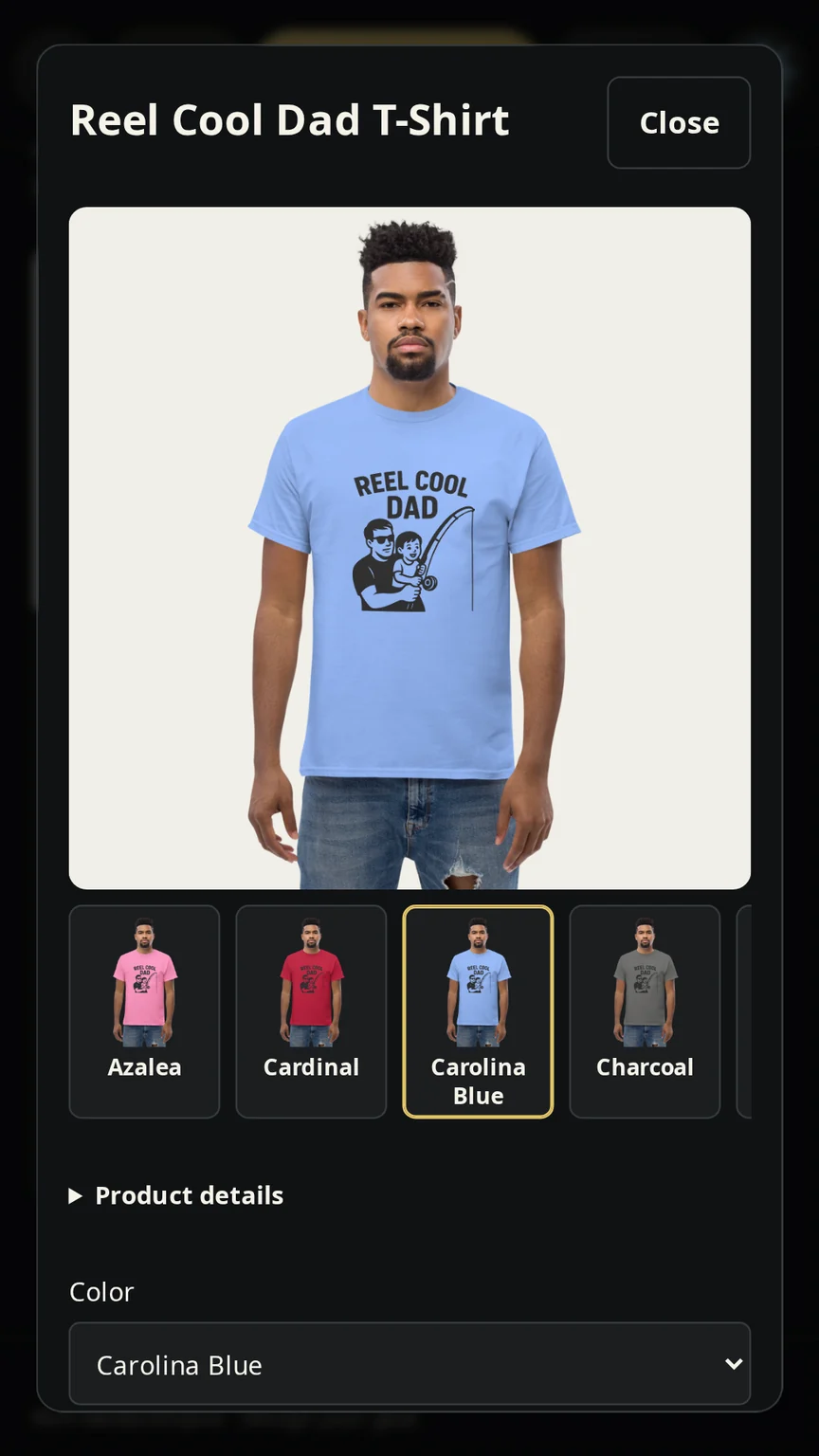
11. Review hoodies
Select Choose Hoodies and compare the available color photos.
Review the enlarged mockup and choose an available size. Close it and reopen the collection to continue.
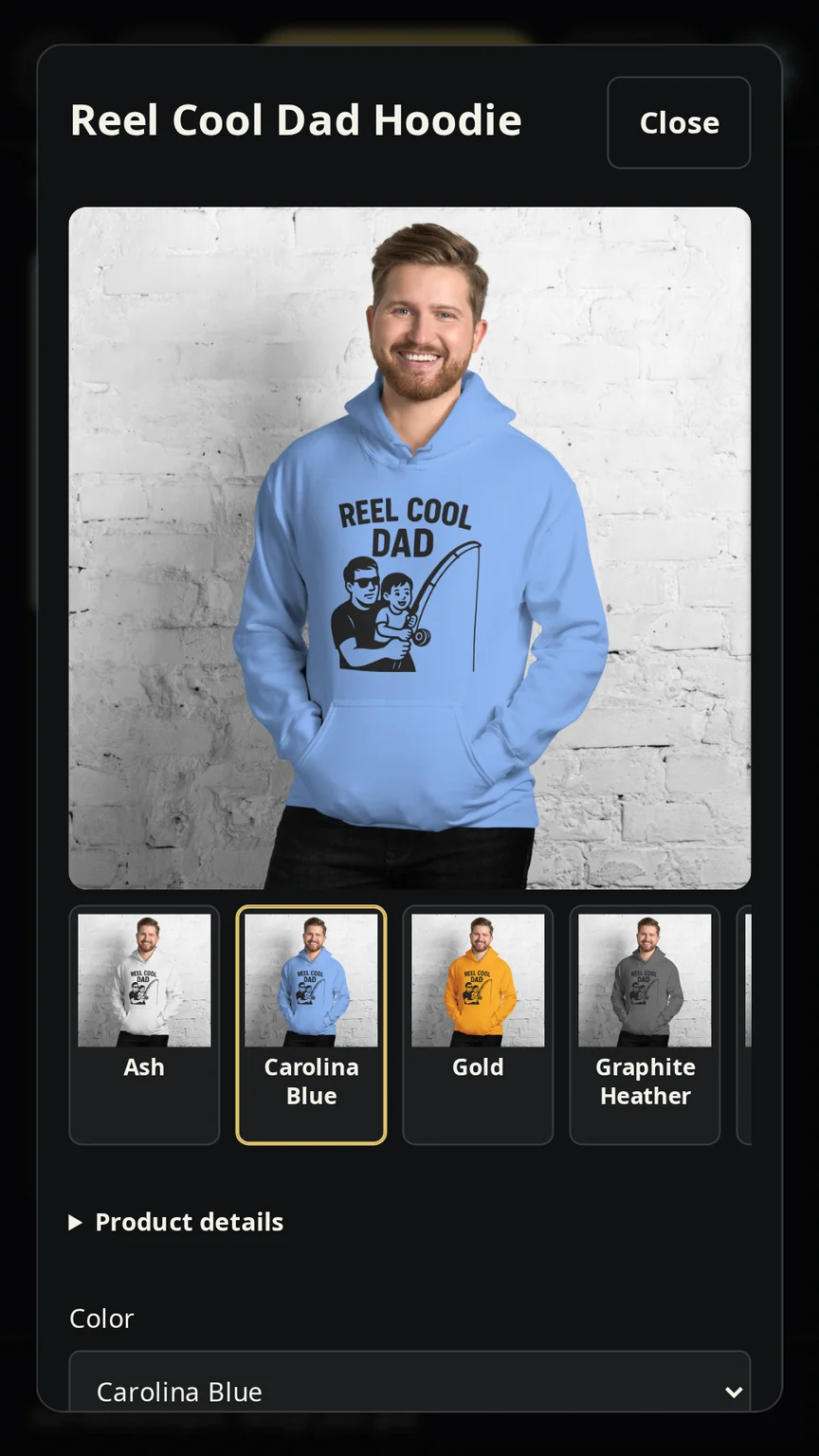
12. Browse the hat styles
Select Choose Hats and scroll through the available styles.
Open a hat to review its mockup, color options and closure details. Close it and reopen the collection to continue.
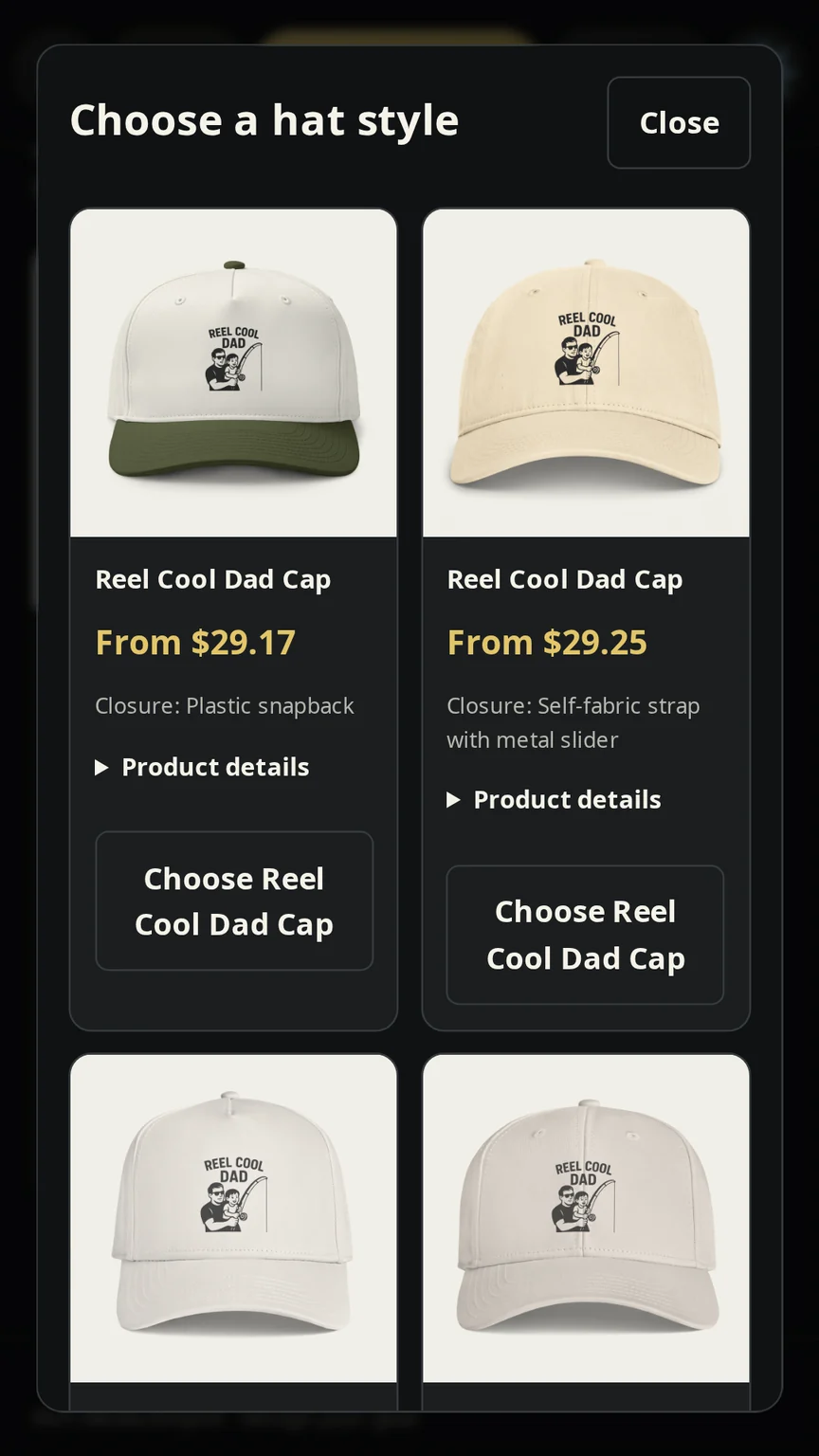
13. Review mugs
Select Choose Mugs and inspect the artwork on the mug.
Review the available sizes and the corresponding preview. Close it and reopen the collection to continue.
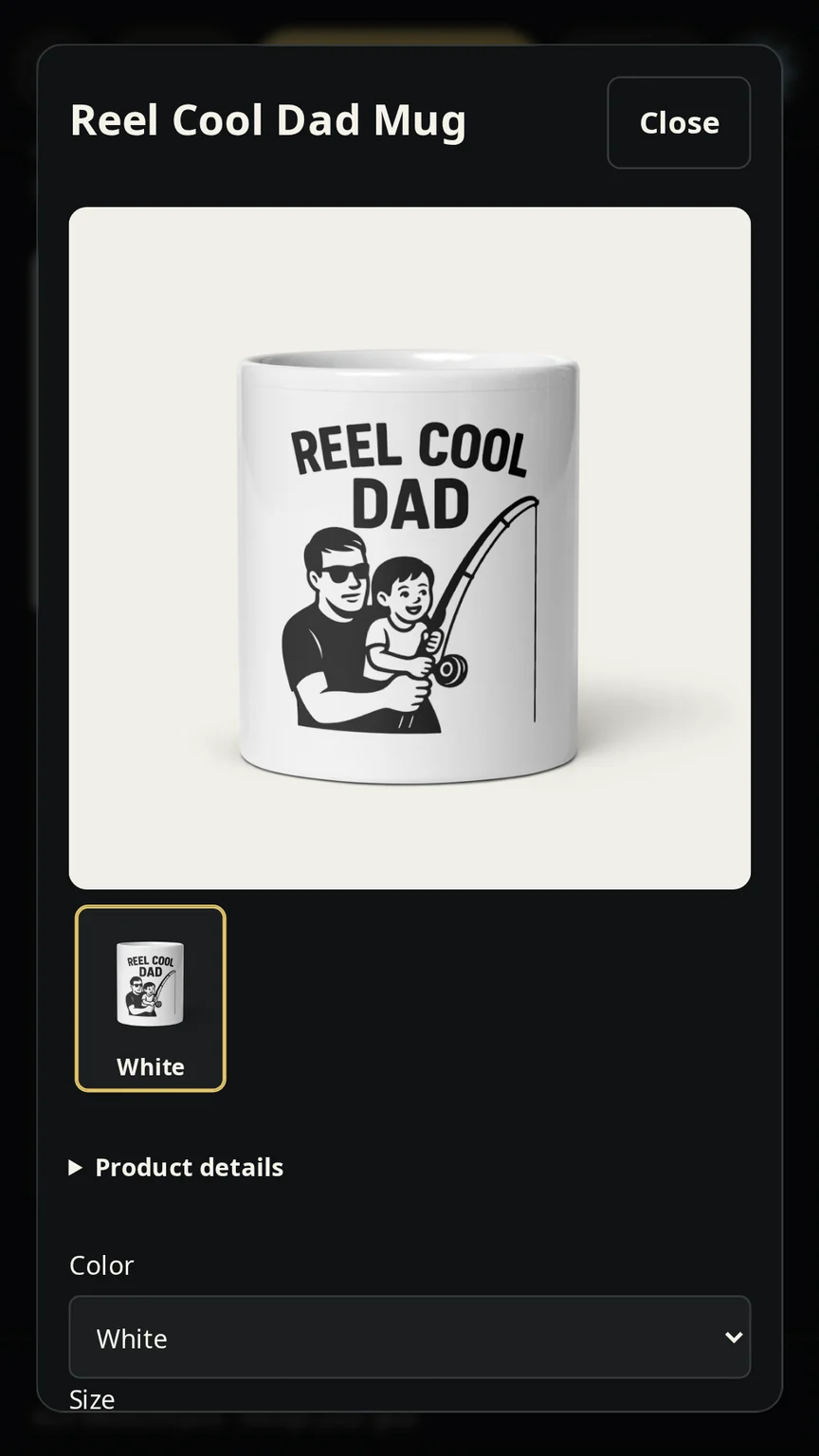
14. Review stickers
Select Choose Stickers and inspect the artwork and cut shape.
Choose an available size and review the preview. You can reopen the collection to compare products before ordering.
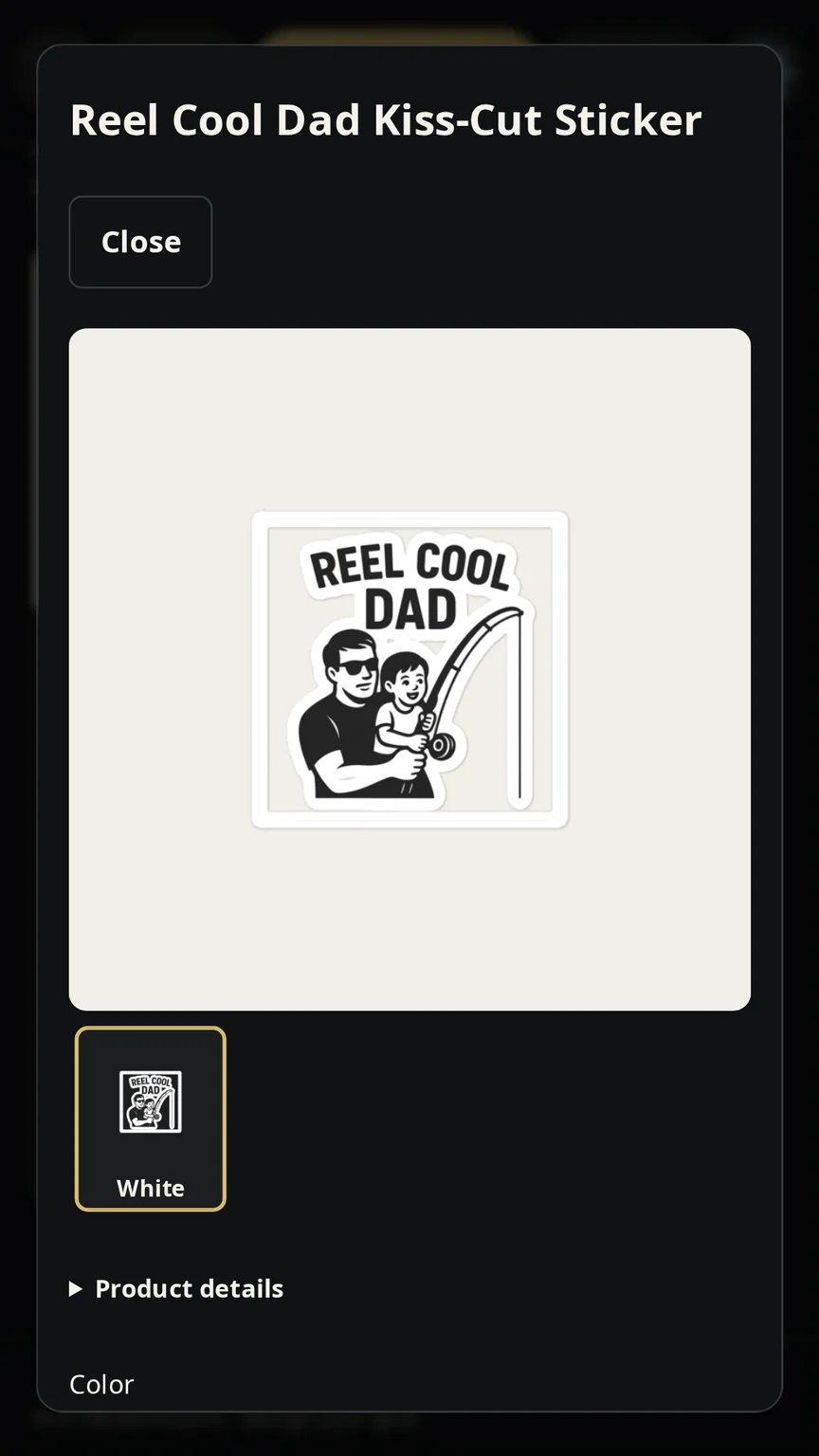
Generate products from your own design for free
Creating product previews is free. You pay when you buy a product.
Recommended artwork guidelines
For best results, use high-resolution graphics, ideally 300 DPI at the intended print dimensions. Transparent PNG files are recommended where the background should not print.
Avoid blurry images, tiny lettering, unwanted backgrounds, and low-resolution screenshots. Requirements vary by product and print method. We check the selected product’s requirements; missing DPI metadata alone does not make an image unsuitable.
Uploads are not automatically retouched and backgrounds are not automatically removed.
Generate image with AI
Your artwork
Your uploaded or generated design will appear here.
Choose your products
More categories take longerChoose some categories or all of them. Adult is selected by default. Choose Youth or Toddler for a different age group. Adult T-shirts use the Gildan 5000 and adult hoodies use the Gildan 18500 with all available colors and sizes. Youth and toddler clothing uses the lowest-priced compatible model for your chosen age. Mugs and stickers use one cheapest compatible model each. Hats include all compatible models. Fewer categories take less time. Choose your color and size from the finished cards. Front print area and front mockups only.
One product usually takes 5 to 10 minutes to generate. It may take longer, especially when generating multiple products. Your products will be available for purchase when generation is complete.
Your private product cards
Review a finished product, choose its options, and approve it before checkout. You can purchase private products without submitting your artwork for shop use.